Why I chose Pages CMS (and not WordPress) for my blog
In How I built my new site, I said I didn’t need a CMS yet. Blog posts were just text files in a folder, and choosing a CMS was “a decision for later, not one I had to make on day one”.
Well, later came round fairly quickly. 😅
Writing posts in text files worked fine. But every new post or edit meant either opening a session with Kit, my AI web developer, or editing the files myself. The blog is the part of the site I’ll update most, and I wanted that to be as easy as possible.
Do I even need a CMS?
That was the first question, and it’s certainly a more interesting one than it used to be.
This site is about as simple as they come. There’s no client who needs to log in and update things, and no team. It’s just me: a handful of pages, a blog and a sales page.
So really, the only part that needs a traditional CMS is the blog. That’s the bit I want to sit down and write in: start a new post or fix a typo in a proper editing screen, without thinking about files or code.
Everything else is a different story now. I’ll give you an example.
On my old WordPress site, I had a Tools page listing the tools I use in my business, grouped by type. Even on a one-person site, that page did benefit from a CMS. Each tool was its own post in a custom post type. I only ever filled in some custom fields and never touched the layout, which was in a template. That kept the page design under control.
Astro has that structure built in. It’s called content collections: each item is a small text file with a set of fields, and a template lays them all out. My blog and legal pages already work this way. So if I bring the Tools page back, I just give Kit the details of each tool and he adds it, in the right group, styled to match. Same structure as before, no CMS needed.
It’s changed the question I’d ask on a client site too. Not “which CMS?”, but “which parts does someone actually need to edit?”
So I wanted a CMS for the blog, and only the blog. Everything else can stay as it is.
The options I looked at
Five had caught my eye over the last few months. But let’s start with the obvious one.
WordPress
I’ve built sites in WordPress for a long time, and I know a lot of you still do. So it deserves a proper look.
And here’s something people often miss: just because this site is built with Astro doesn’t rule WordPress out. You can use WordPress purely as the CMS, writing in the familiar block editor, and have Astro pull the posts in when it builds the site. That’s usually called “headless” WordPress, and it’s a perfectly good setup.
So why not here? Because for one person writing one blog, it’s a lot of machinery. I’d need a WordPress install running somewhere, with hosting, a database, plugins, updates and security to look after, just so I can write blog posts. My posts would live in that database rather than in my project. And the site would need telling to rebuild every time I published something.
For a client site with several editors, lots of different content and people who already know WordPress, it can be a great choice. For my blog, it’s overkill.
Craft Pages
Craft Pages is a free desktop app that lets you click on the text of a site and edit it in place. It’s very new. But its own website says it’s for plain HTML sites, and that sites built with tools like Astro are better edited at the source. Mine’s built with Astro, so that ruled it out.
Sanity
Sanity is a hosted content platform with a very capable, very customisable editing studio. Your content lives in Sanity’s cloud rather than in your project, and the site rebuilds whenever you change something.
It’s powerful. But for a personal blog, it’s another account, another place my content lives, and another pricing plan to keep an eye on. Way more than I need.
Payload
Payload is a full application with its own database. Hugely capable, but I’d be running and hosting a second app alongside the site. That’s pretty much the WordPress setup I’d just moved away from. No thanks.
Keystatic
Keystatic is open source, and like the site, it keeps content as text files in the project. It plugs into Astro, adds an admin area to the site itself, and has a richer editor than Pages CMS.
This was a very close second. The catch is that to edit from anywhere other than my own Mac, the site needs a small server-side part for the admin and sign-in. Right now my site is completely static, and I like it that way.
Pages CMS
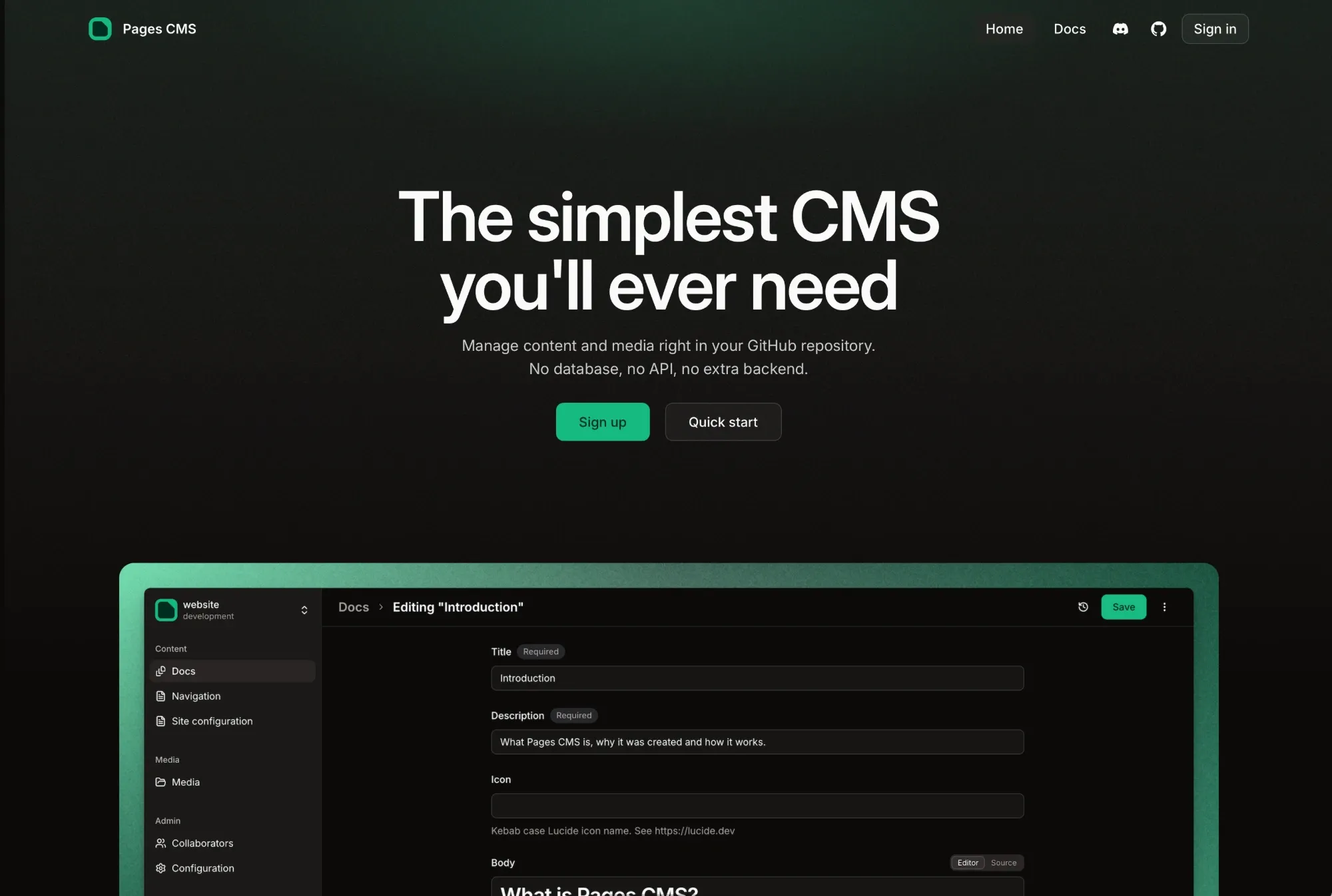
Pages CMS is a free, open-source web app. You sign in with your GitHub account, point it at your site’s project, and it gives you a proper editing screen for your text files. When you save, it writes the changes straight back into those files. (Thanks for the tip, Brendan O’Connell.)
Why I went with Pages CMS
It was the only option that gave me an editing screen without changing how the site is built, hosted or published.
- My posts are still text files in my project, with every version saved, just as before. If I stopped using Pages CMS tomorrow, nothing would break.
- Nothing to install on the site. No database, no plugins, no admin area to keep secure.
- I can write from anywhere. It’s a website, so it works in any browser, including on my phone.
- My publishing process stays the same. Saves go to my staging branch first: a private test version of the site. Nothing reaches the live site until I say so.
Keystatic was the fallback if Pages CMS felt too basic to write in. So far, it doesn’t.
How we set it up
I asked Kit to set it up and test it with me. It took one session.
Kit’s part was small:
- One settings file in the project that tells Pages CMS what a blog post looks like: a title, a summary, the publication date, a “draft” switch, and the post itself. They’re the same fields my posts already had.
- A folder for images, so any image I upload is resized and optimised automatically, like every other image on the site.
- One small fix. If I left the optional “updated” date empty, the site would have refused to build. Kit made it treat an empty date as “not updated”.
My part was even smaller: sign in to Pages CMS with GitHub, give it access to the site’s project, and choose the staging branch (that private test version).
Then we tested it. I wrote a test post and saved it. I added an image and saved again. Then I made a tiny edit to an older post.
After each save, Kit checked exactly what Pages CMS had changed in the files, and how the post looked on my staging site.
How it works day to day
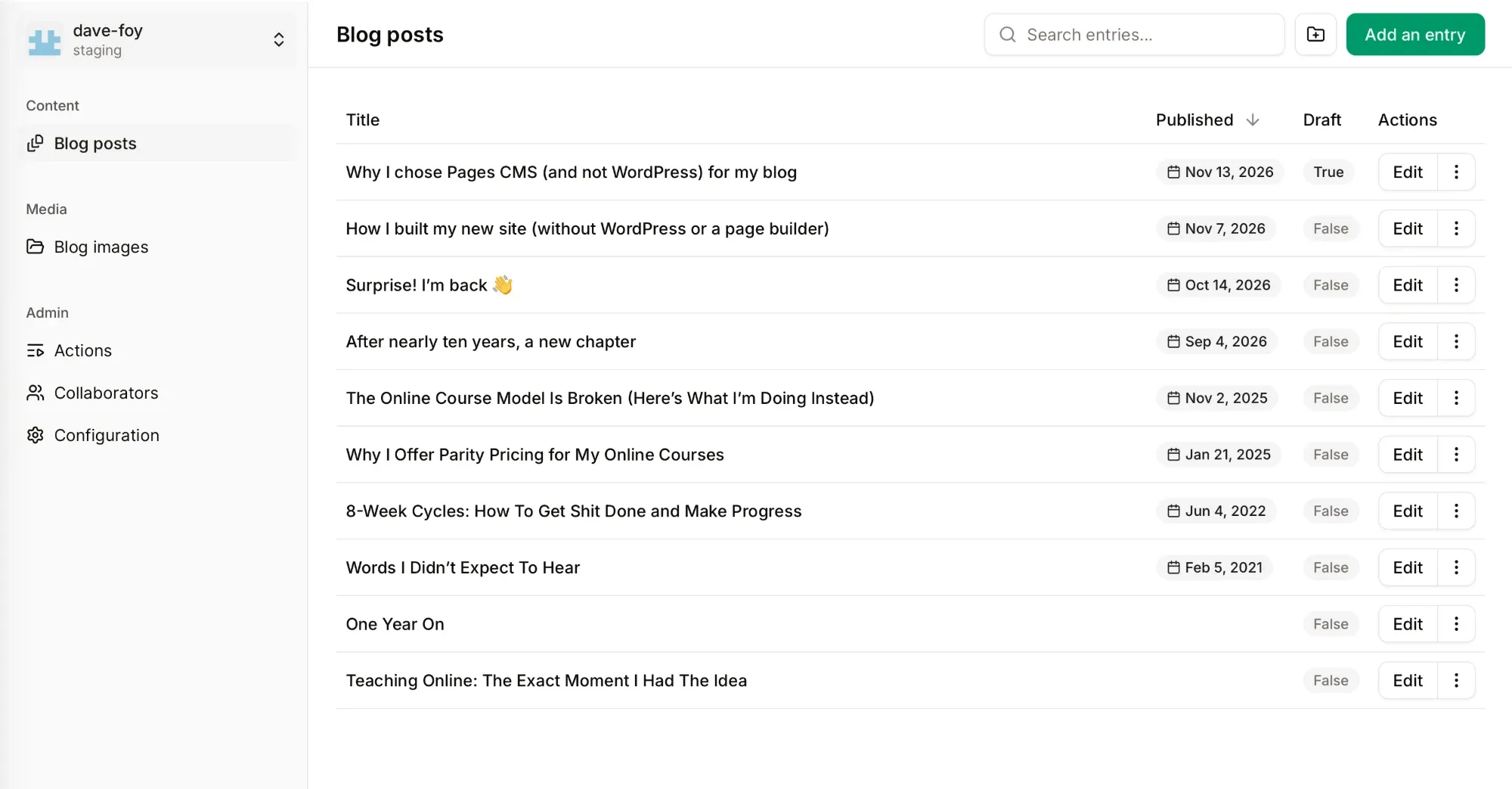
- I open Pages CMS and choose Blog posts. They’re listed newest first.
- I start a new post, or open an existing one. The editor is a simple word-processor-style screen, with headings, bold, links and images.
- New posts start with Draft switched on. A draft appears on my staging site, with a “Draft” label at the top, but never on the live site.
- Every time I save, the change goes to staging, and my staging site updates a couple of minutes later. That’s my preview.
- When the post is ready, I switch Draft off, save, and publish the site as usual, which copies everything from staging to the live site.
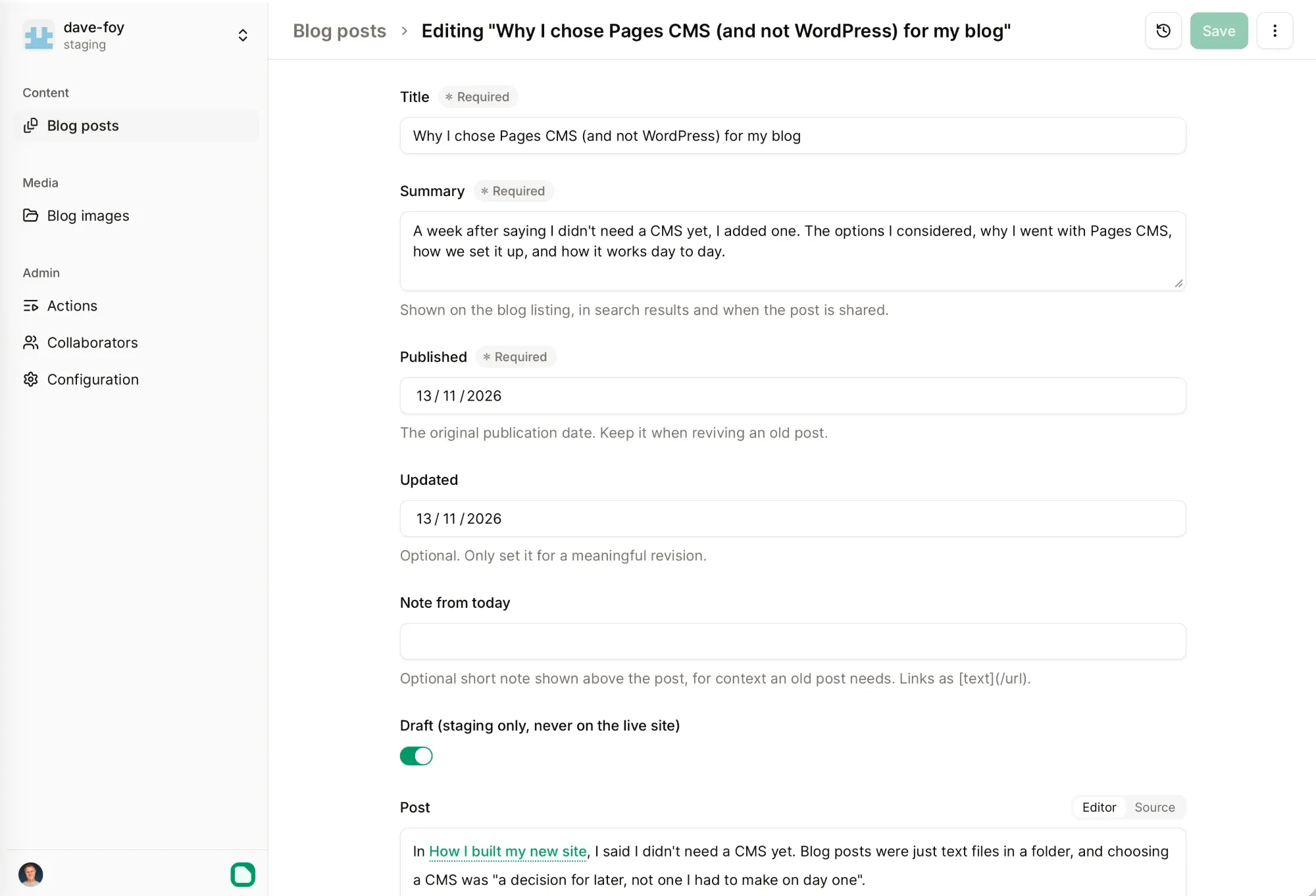
There’s no preview of the finished page inside Pages CMS itself. The editor shows the formatting, but not my site’s design. For me, that’s fine: staging is the preview, and a draft can’t reach the live site by accident.
One thing to watch: Pages CMS lets you switch between branches, and the live branch is right there too. Save while that’s selected and the change goes live straight away. So I always check it says staging before I start.
So, was “decide later” the right call?
I think so. Because the site wasn’t tied to a CMS from day one, adding one later was easy, and I could choose it based on how I actually work, not how I guessed I’d work.
And it shows how AI changes the cost of changing your mind. Adding a CMS took one session with Kit, not a rebuild. So you don’t have to get every decision right up front. Make the ones you need to, and keep the rest easy to change.
If you’re building without WordPress, what are you using for content? Or are your clients still happiest in WordPress? I’d love to know.